WidelVideo: The AI Video Editor That Runs in Your Browser
A complete guide to WidelVideo, the WidelAI video editor: a multi-track timeline that renders in your browser, plus an AI editor with 73 tools. Seven workflows, from long video to shorts and auto captions to multicam and color, and how credits work.
WidelAI Team
Building the future of AI accessibility
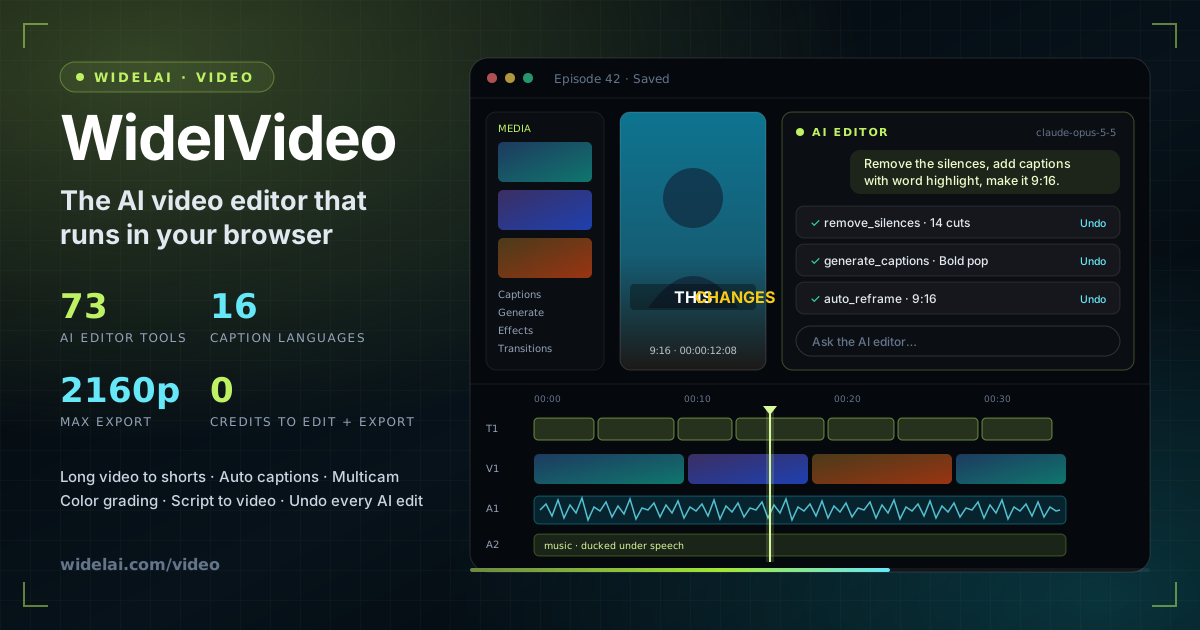
WidelVideo is the video editor inside WidelAI. Open the Video tab, drop in your footage, and edit on a real multi-track timeline, or tell the built-in AI editor what you want ("remove the silences", "make a vertical 9:16 version", "color grade it warm and cinematic") and watch it make the cuts on the same timeline, one undoable step at a time.
Two things make it different from most online editors. First, everything renders in your browser. Preview runs on WebGL2 and export runs on WebCodecs, so your timeline edits, effects, color and final render never wait on a server queue, and exporting uploads nothing. Second, the AI is not a black box that hands you a finished clip. The AI editor works through 73 editing tools on your project, shows a card for every change it makes, and lets you undo any one of them or the whole turn.
This guide covers what WidelVideo does, who it is for, and seven concrete workflows: long video to shorts, auto captions, cleaning up talking-head footage, multicam, color, AI-editor edits and generating missing shots. It ends with how editing, AI jobs and credits fit together, the honest limits, and how to start. Every feature described here is in the editor today; the widgets below are interactive.
A full editor, an AI that edits with you, and no render queue
- AI editor tools
- 73
- Cuts, trims, captions, color, audio, multicam, shorts and generation
- Caption languages
- 16 + auto
- Auto-detect, word-level timing, translation that keeps the timing
- Max export
- 2,160p
- MP4 (H.264) or WebM (VP9), 24 to 60 fps, rendered on your device
- Credits to edit and export
- 0
- Timeline editing, effects, color and export run in your browser
AI jobs such as transcription, analysis and generation, and the AI editor's own model turns, are billed in WidelAI credits. Everything else is free to use on your account.
The Short Answer
- What it is: a browser-based, multi-track video editor at widelai.com/video, with an AI editor that edits your timeline from plain-English requests.
- What it is for: turning raw footage into finished videos fast. Podcasts and webinars into captioned shorts, talking-head videos without the ums and dead air, two-camera interviews, product and social videos in every aspect ratio.
- What runs locally: editing, effects, color, scopes, audio mixing, silence removal, scene detection, motion tracking, multicam sync, stabilization and export. No credits, no uploads.
- What costs credits: speech-to-text for captions, AI analysis (shorts and highlight picks), translation, generation (video, images, voiceover, music, sound effects, dubbing) and the AI editor's model turns. Every generation shows a credit estimate first.
- What you need: a WidelAI account and a current Chrome, Edge, Safari 17+ or Firefox 130+. Cloud sync of your media and AI generation need an active plan.
What WidelVideo Is
WidelVideo sits next to Chat and Code as the third WidelAI workspace. The idea is the same as WidelCode: a human and an AI agent work on the same thing, and the human stays in control. In WidelCode that thing is a repository. In WidelVideo it is a timeline.
It is local-first. Projects save to your browser about 400 ms after every edit, and media is cached on your device (in the browser's private file system, with IndexedDB as a fallback). With an active plan, projects and media also sync to your WidelAI account, with revision checks: if the same project changed somewhere else, you choose to keep yours, keep both, or use the other version. Manual editing keeps working offline; the sync badge simply reads "Offline" until you reconnect.
It is a real editor, not a template tool. You get a magnetic main track, as many video, audio, text, overlay and effect tracks as you need, ripple and snapping, linked and connected clips, compound clips, auditions (alternate takes on one clip), slip, slide and roll trims, three-point editing, keyframes with bezier easing, speed ramps, freeze frames, masks, 13 blend modes, 18 transitions and named version history.
It renders on your device. The preview compositor is WebGL2 and export uses WebCodecs, the browser's hardware video encoders. For heavy footage you can switch on proxies (made in the browser, 540p, preview only; export always reads the originals).
It works on smaller screens too. Below 1,024 px wide the editor switches to a stacked layout: preview, toolbar and timeline, with Assets, Inspector and the AI editor as tabs.
Who It Is For
| You are... | You will use WidelVideo for | The features that matter |
|---|---|---|
| A podcaster or streamer | Weekly clips from long recordings | Shorts from this video, Bold pop captions, multicam, remove silences |
| A creator or social team | One video in every format | Six aspect presets, Auto reframe, caption styles, export presets |
| An educator or course author | Clean lessons in several languages | Remove filler words, edit by transcript, translate captions, SRT/VTT export |
| A marketer | Ads and product videos without a shoot | Script to video, Veo b-roll, voiceover, music, title presets |
| An editor or agency | Fast rough cuts handed to a finishing tool | FCPXML and EDL export, scopes, color wheels, curves, LUTs |
| A WidelAI user who already has footage | Quick edits without learning an editor | The AI editor and its six one-tap suggestions |
A Quick Tour of the Editor
| Area | What is in it |
|---|---|
| Assets | Tabs for Media, Text, Audio, Stickers, Effects, Transitions, Captions and Generate |
| Preview | Transport, frame step, loop, safe zones, quality, full screen, on-canvas transform, crop and mask handles, optional scopes (waveform, vectorscope, histogram) |
| Inspector | Everything about the selected clip: transform, opacity and blend, crop, speed and speed curve, audio, effects, masks, motion tracking, scene detection, multicam, animation, transitions, keyframes, auditions. With nothing selected it shows project settings |
| AI editor | The agent panel: model picker, chat, a card per tool call, approvals, credit counter |
| Toolbar and timeline | Select, Blade, Hand and trim tools, snapping, ripple, link, markers, zoom, aspect and Auto reframe, proxies, audio mixer, Export |
| Header | Project name, sync status, version history, undo and redo, AI editor toggle |
You can import MP4, MOV, WebM and MKV video, any common audio format, PNG, JPEG, WebP and GIF images, TTF, OTF and WOFF2 fonts (they appear in the font list), .cube LUTs and SRT, VTT, ASS and SSA subtitles, by file picker, drag and drop or paste.
Seven Workflows, Step by Step
Pick a workflow to watch it run. Each step is labelled with where it happens: on your device, or as an AI job billed in credits.
From raw footage to a finished video
Pick a workflow and the playhead runs through it. Tap any step for the detail.
- 01Drop the episodeDevice
Import the recording and put it on the main track. Long files stay on your device; proxies keep the preview smooth.
- 02Find the momentsAI
Shorts from this video asks an AI analysis job for the best self-contained moments of the length you chose (5 to 180 seconds).
- 03TranscribeAI
Each source is transcribed once for word-timed captions, then reused by every short.
- 04Cut and reframeDevice
Every moment becomes its own project in 9:16, 1:1, 4:5 or 16:9, reframed to keep the face in shot where the browser supports face detection.
- 05CaptionDevice
Captions land on their own track in a caption style, ready to restyle or edit word by word.
- 06Polish and exportDevice
Open any short, tweak the hook, export MP4 in your browser.
1. Long video to shorts
This is the workflow most people come for. Put the full episode on the main track, open Generate, and choose Shorts from this video. Set how many (1 to 10), how long each should be (5 to 180 seconds) and the shape (9:16, 1:1, 4:5 or 16:9).
WidelVideo asks an AI analysis job to find the best self-contained moments, transcribes the audio once, and then creates a new project for every short: cut from your timeline, reframed to the new aspect ratio, and captioned. Each short links back to its source episode, so your original edit is untouched. Open each one, sharpen the first two seconds, and export.
Want one longer cut instead of several clips? Highlight reel builds a 5-second to 10-minute reel in a punchy, cinematic, funny, informative or emotional style and puts it on the main track in place of the original.
2. Auto captions that you can actually edit
In the Captions tab, pick the spoken language or leave it on Detect, and generate. You get caption clips with word-level timing on their own track. Four presets cover the common looks:
| Preset | Position | Look |
|---|---|---|
| Classic | Bottom | Up to seven words over two lines |
| Bold pop | Middle | Three uppercase words, the spoken word popping in yellow |
| Karaoke | Bottom | The spoken word highlighted in cyan |
| Minimal | Bottom | Plain text with a typewriter reveal |
Because the captions come from a transcript, the transcript doubles as an editor: select words (click, shift-click, cmd-click) and press Delete to cut them from the video. Translate captions creates a new language version with the original timing, and you can export SRT, VTT or ASS files or import existing subtitles.
3. Clean up a talking-head video in a minute
Right-click a clip and choose Remove silences. It runs on your device: pauses longer than 500 ms are cut with 100 ms of padding, using a threshold that adapts to the recording. Remove filler words goes further, cutting um, uh, er, hmm and similar sounds, and optionally the phrases "you know", "I mean", "sort of" and "kind of". It uses the transcript, so it is billed if the clip has not been transcribed yet.
Then fix the sound. Each clip can take EQ, compressor, noise gate, denoise, reverb, pitch, a dialogue leveler or a voice changer. The mixer adds per-track solo, pan and bus effects, ducking that lowers music under speech, and a master limiter. Normalize loudness measures the clip with ITU-R BS.1770-4 and sets it to -14 LUFS. You can also record a voiceover straight from your microphone with a countdown and level meter.
4. Multicam without a clapperboard
Import your angles, select two or more, and create a multicam clip. WidelVideo syncs the angles by cross-correlating their audio over the first 15 minutes, so you do not need matching timecode or a slate. Play it back and press 1 to 9 to cut to that angle at the playhead, then refine any cut in the inspector. Sync clips uses the same audio matching for a separate audio recorder.
5. Color, from one click to full control
Start with Auto color, which measures the footage on your device and writes an ordinary correction you can keep tweaking, or Match color to make one shot look like another. From there you have the tools of a grading suite:
- Adjust: 15 sliders: exposure, brightness, contrast, saturation, vibrance, temperature, tint, highlights, shadows, whites, blacks, hue, sharpen, vignette and grain.
- Color wheels: lift, gamma and gain.
- Curves: master plus red, green and blue.
- HSL secondary: qualify one colour range and shift it, with a mask preview.
- Looks: your own .cube LUTs, or 12 filters (vivid, mono, film, warm, cool, fade, noir, teal-orange, vintage, dramatic, pastel, cinematic), each with an intensity.
- Scopes: luma waveform, vectorscope and RGB histogram beside the preview.
Drop any effect on empty timeline space and it becomes an adjustment layer that grades everything beneath it. The same effects panel has blur (gaussian, motion, radial, zoom), chroma key, background removal for people, stabilization, and stylize effects like glow, VHS, glitch, RGB split, film grain and light leaks.
6. Let the AI editor do the tedious part
Open the AI editor panel and ask. The six suggestions in the panel are a good start: "Remove the silences", "Add captions with word highlight", "Trim this to 30 seconds keeping the best parts", "Make a vertical 9:16 version", "Add a title card at the start" and "Color grade it warm and cinematic".
Under the hood the agent has 73 tools across reading the project, timeline edits, clip properties and keyframes, text and captions, smart edits (silences, filler words, cut to beat, auto reframe, highlight, edit by transcript), generation, multicam, motion tracking, scene detection, shorts, color matching, loudness and version snapshots. It can read your transcript and look at rendered frames before it decides what to cut. It runs up to 30 steps per request.
You stay in charge:
- Every tool call is a card with Undo and Jump to. Undo all reverts the whole turn as one step.
- Generation always asks first with a credit estimate, unless you raise the auto-approve threshold (it starts at 0, so everything asks).
- Big deletions ask first (more than three clips, or a whole track) unless you switch on Auto-apply edits.
- You pick the model. Any WidelAI chat model with tool support works, with Claude Opus 5.5 as the default. The panel shows what the current request has cost so far.
It also never exports or downloads on its own; asked to export, it opens the export dialog for you.
7. Generate the shots you do not have
The Generate tab puts WidelAI's media models next to your timeline. It covers video, image to video, extend video, images, image edits, voiceover, sound effects, music, voice isolation, dubbing, voice change, media analysis and scripts. Pick a model, write a prompt, and the result can land on the timeline at the playhead. Jobs run in a queue with progress and cancel, and the button shows the estimated credits before you start.
Video generation includes Google's Veo 3.1 family (4- to 8-second clips at 720p or 1080p, and 4K on Veo 3.1, with native audio) and Gemini Omni 1.2 Flash (4 to 15 seconds); images include Nano Banana and GPT Image models. Script to video chains it all: brief, script, voiceover, a visual per scene and captions, for a 10-second to 10-minute first cut. The models shown are the ones available on WidelAI when you open the tab.
Pick the Right Tool for the Job
What are you making?
Pick your situation and see which WidelVideo tool to reach for first.
Routed to
Shorts from this video
Finds the best self-contained moments, then makes one reframed, captioned project per clip, in 9:16, 1:1, 4:5 or 16:9.
Also consider: Highlight reel for a single 5-second to 10-minute cut.
Run it on WidelAIExport: Formats, Resolutions and Hand-off
Exports render in your browser, with a size estimate, a progress bar with frame count and time remaining, and cancel. Keep the tab open until it finishes.
| Setting | Options |
|---|---|
| Video formats | MP4 (H.264 + AAC), WebM (VP9 + Opus) |
| Audio-only | M4A (AAC), WAV, MP3 |
| Resolution | 480p, 720p, 1080p, 1440p, 2160p (4K), keeping the project's aspect ratio |
| Frame rate | 24, 25, 30, 50, 60 fps |
| Quality | A slider from Smaller file to High quality, with the estimated size shown |
| Range | Whole timeline, or the in to out range |
| Extras | Chapters written into MP4 and M4A, Save straight to disk for big files |
| Hand-off | FCPXML 1.10, CMX 3600 EDL, SRT, VTT, ASS, YouTube chapters |
Projects can be any of six presets (16:9 1920x1080, 9:16 1080x1920, 1:1, 4:5, 21:9 and 4:3) or a custom size, at 23.976 to 60 fps. Auto reframe converts a finished edit to another preset, and Save project as template turns a project into a starting point for the next one.
Keyboard Shortcuts Worth Learning
| Keys | Action |
|---|---|
| Space, J / K / L | Play and pause, shuttle back / pause / forward |
| S or Cmd+B | Split at the playhead |
| I / O | Set in and out points |
| E / W / D | Append, insert, overwrite from the source range |
| A / B / H | Select, Blade, Hand tools |
| Y / U / R | Slip, Slide, Roll trims |
| Shift+Delete | Ripple delete |
| M / Shift+M | Marker / chapter marker |
| N / P | Toggle snapping / ripple |
| 1 to 9 | Switch multicam angle |
| Cmd+E | Export |
How WidelVideo Fits with WidelAI Models and Credits
WidelVideo uses the same account, the same models and the same credit balance as WidelAI chat and WidelCode. The rule of thumb is simple: your device does the editing, credits pay for AI.
| What you do | Where it runs | Cost |
|---|---|---|
| Timeline editing, effects, color, scopes, mixing, export | Your browser | No credits |
| Remove silences, scene detection, cut to beat, motion tracking, multicam sync, stabilize, auto color, auto reframe | Your browser | No credits |
| Auto captions, filler-word removal, edit by transcript (first transcription) | Speech-to-text job | Credits per minute of audio |
| Shorts, highlight reel, analyze media | AI analysis job | Credits per job |
| Translate captions, write script | Text model job | Credits per job |
| Video, image, voiceover, music, sound effects, dubbing | Generation job | Shown before you generate |
| AI editor turns | The chat model you pick | Chat credits, like any WidelAI conversation |
A few details worth knowing:
- Generation credits are held up front and the charge is capped at the hold, so a job never costs more than the estimate you approved.
- The AI editor's cost depends on the model. A cheaper model costs fewer credits per turn; the panel shows the running total for each request. The models and their per-token rates are on the models page and the pricing transparency page.
- Cloud sync and generation need an active plan. Without one, your projects and media stay in your browser. With one, synced media counts toward your video storage (20 GB on Starter, 100 GB on Pro, files up to 4 GB each), shown on the Video page.
Limits and Honest Caveats
- A modern browser is required. The editor needs WebCodecs: current Chrome or Edge, Safari 17+ or Firefox 130+.
- Exports use your machine. A long 4K export takes as long as your hardware needs, and the tab must stay open. Save straight to disk is suggested for 4K, files over 15 minutes, or over about 1.5 GB.
- Auto reframe keeps faces only where the browser supports face detection. Elsewhere it centres the frame; you can adjust the position by hand.
- Background removal is for people. It uses an on-device person segmentation model, not general object removal.
- Motion tracking follows position and scale, not rotation, and stabilization corrects shake by translation, not rotation or rolling shutter.
- The master limiter is a compressor-style limiter, not a true-peak limiter. Leave a little headroom for platforms with strict true-peak rules.
- No ProRes export in the browser. Use MP4 or WebM, or hand the edit to a finishing tool with FCPXML or EDL.
- The AI editor needs a connection and a synced project. Manual editing does not.
Try WidelVideo
- Sign in to WidelAI, or create an account.
- Open Video from the sidebar and create a new video in the aspect ratio you need.
- Drop in your footage. Drag files onto the editor, use the file picker, or paste.
- Edit by hand or ask. Cut on the timeline, or open the AI editor and tap a suggestion.
- Export from the toolbar (Cmd+E) and choose the format, resolution and quality.
For AI generation and syncing your media across devices, choose a plan on the pricing page. Pro includes the full model catalog, so the AI editor can run on any of them.
FAQ
Is WidelVideo free? Editing, effects, color and export run in your browser and use no credits. AI jobs (transcription, analysis, translation, generation) and the AI editor's model turns use WidelAI credits. Cloud sync and generation need an active plan.
Does my video get uploaded? Not to edit or export it: rendering happens on your device. With an active plan your media syncs to your WidelAI account so you can open the project elsewhere and so AI jobs can process it. WidelAI does not use your content to train AI models.
Which AI model does the AI editor use? The one you pick. Any WidelAI chat model that supports tools works, and Claude Opus 5.5 is the default.
Can I finish my edit in Premiere Pro, Final Cut Pro or DaVinci Resolve? Yes. Export FCPXML 1.10 or a CMX 3600 EDL, plus SRT or VTT captions.
Does it work on a phone or tablet? The editor switches to a stacked layout below 1,024 px wide, so it works on tablets and large phones in a supported browser. A desktop is still the comfortable choice for long timelines and 4K exports.
Related Reading

Do your best AI work in one place
Bring your next question, draft, file, or idea to WidelAI. Choose the model that fits the moment, keep your work together, and stay in control of privacy and usage.
Leading models, one workspace
Use powerful AI models without juggling separate tabs, accounts, or workflows.
Switch without starting over
Change models as your work evolves while keeping the conversation and context together.
The right model for every task
Choose speed for everyday work or deeper reasoning for complex questions and decisions.
Clear credits and model rates
See your balance, understand each model’s rate, and track usage from one place.
Bring your files and images
Work with documents and images alongside your prompts in the same focused experience.
Your work stays yours
Your data is encrypted in transit and at rest, and your content is never used to train AI models.